SSB Camera System Troubleshooting
Overview
If the SSB camera system is unresponsive, there are several steps a member can take to diagnose the issue.
It is always preferable to reset faulty devices using their web pages rather than pulling their plugs.
If your friends can access the cameras but you cannot, it is likely a problem with your device or connectivity.
Typically the problem will fall into two categories.
1. Inseego Router Issues
Purpose
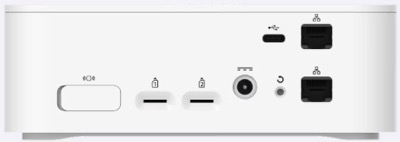
The Inseego router provides internet connectivity via a 5G cellular signal and serves as the device that transmits Wi-Fi signals within and around the shack.
Location
The Inseego router is situated on the top shelf of the shack, adjacent to the trophies.
Initial Tests and Reset Procedure
Using the Shack’s Computer
- Load the Chrome browser on the Shack’s computer.
- Select the FX3100 shortcut located at the top of the favorites bar. This action will display the router’s status.
If the FX3100 status page does not appear, reset the device by disconnecting its power supply.
- If the status page is displayed, navigate to the “Sign In” section and select “Restart Device.”
If prompted for a password, refrain from entering any information and instead select the previously saved password from the Chrome browser.
Additional Information
The router also possesses a wired connection to a Trendnet Switch. This switch facilitates connectivity to hardwired devices such as the Reolink NVR and the Shack’s computer.
Links
https://inseego.com/products/5g-indoor-routers/fx3100/
2. Reolink Network Video Recorder (NVR) Issues
Purpose
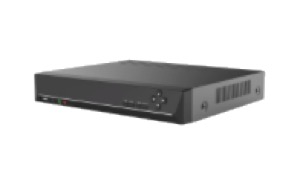
The NVR serves as the central hub for all the cameras, transmitting signals to the Reolink application on your devices.
Location
The NVR is situated beneath the bench, directly beneath the Shack’s computer.
Initial Testing and Reset Procedure
Utilizing the Shack’s Computer
- Launch the Chrome browser on the Shack’s computer.
- Select the NVR shortcut located at the top of the favorites bar.
This action should render the Login page of the NVR. If this does not occur, you have gathered some diagnostic information.
In either scenario, reset the device by:
- Preferably toggling it on or off using the switch located on the back of the device.
- Disconnecting its power source.
Additional Information
Upon successfully logging into the NVR, you should be able to view the active cameras.
Links
REOLINK 4K Security Camera System - H.265 4pcs PoE Security Cameras
REOLINK Duo 3 PoE 16MP UHD Dual-Lens PoE Security Camera with 180° Panoramic View
Reolink High Speed and Stability 4+1-Port PoE Switch for Home & Business